Table of Contents
Settings | Speech-to-Text
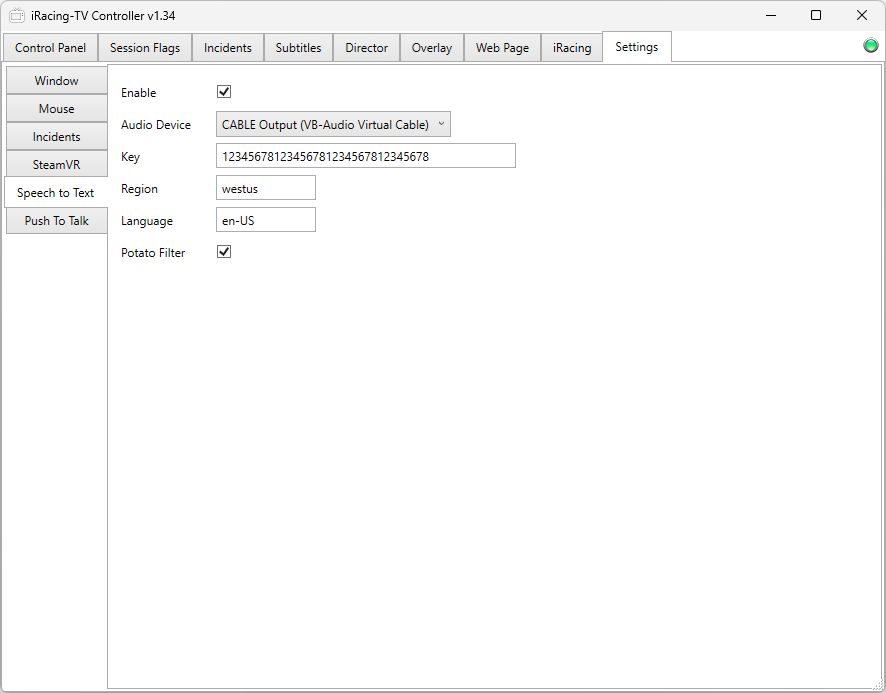
iRacing-TV's speech-to-text solution allows you to do two things -
- It will create subtitles for you automatically for use with the Subtitles overlay
- It will show what people are saying in real-time using the HUD overlay
This feature relies on Microsoft Azure's speech-to-text service. Unfortunately, it is not a free service, however it is relatively cheap! It costs approximately one dollar for each hour of dialogue. This does not mean two hours of racing costs you $2 for speech-to-text services. The service is used only when people are actually talking - so if nobody says a word the entire race then you pay nothing.
Enable
When this checkbox is ticked, the iRacing controller will attempt to use Microsoft Azure's speech-to-text service. When this checkbox is not ticked, this feature is turned off.
Audio Device
This is the audio device that you want the speech-to-text service to listen to for voice chatter. Ideally you want to send clear voice signal to the service, without any of the engine or other racing sounds. The easiest way to do this would be to download and install an app called “VB-CABLE Virtual Audio Device”. After you do that, the device to select here would be “CABLE Output (VB-Audio Virtual Cable)”.
 ===== Key =====
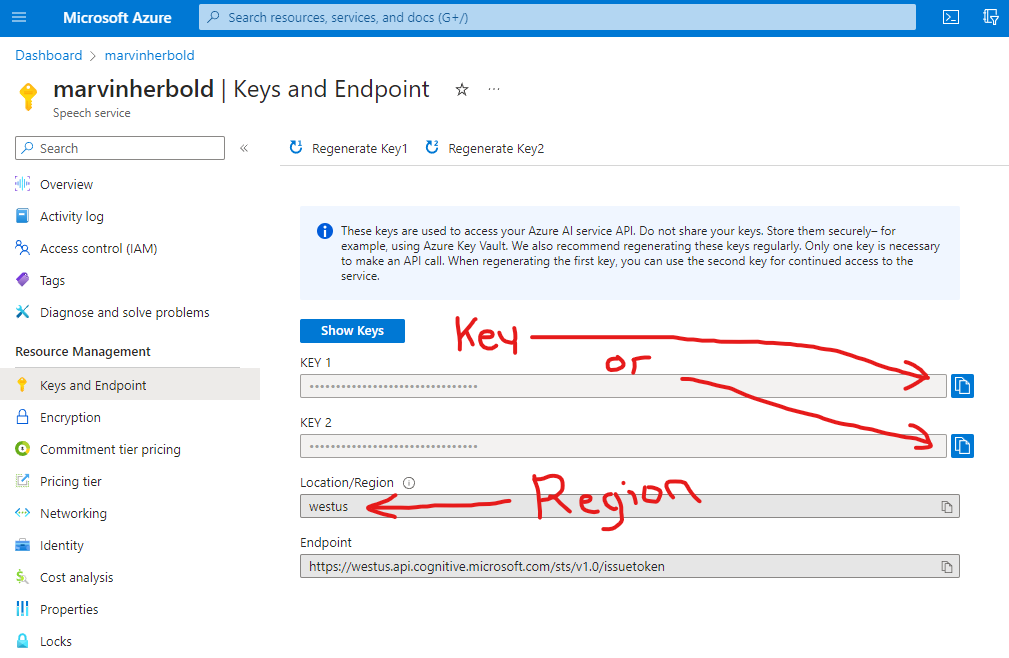
This is either “Key 1” or “Key 2” (it does not matter) from Microsoft Azure's “Keys and Endpoint” page. Please take a look at the image at the right for an example of what to look for.
===== Key =====
This is either “Key 1” or “Key 2” (it does not matter) from Microsoft Azure's “Keys and Endpoint” page. Please take a look at the image at the right for an example of what to look for.
Region
This should match the region that you have selected for your Microsoft Azure speech-to-text service. This would normally be the region closest to where you live.
Language
This is the language that drivers in your race would normally be speaking. Unfortunately you can only pick one language - the service is not capable of detecting multiple languages at the same time. By default this is set to be en-US which means “American English”. For a complete list of languages that you can choose from, take a look here -
https://learn.microsoft.com/en-us/azure/ai-services/speech-service/language-support?tabs=stt
For example, for “British English” you would enter “en-GB” here. For French you would enter “fr-FR” here. For Dutch you would enter “nl-NL” here. You get the idea.
Potato Filter
If you would prefer that profanity is filtered out from the transcribed text, enable this option. This option is enabled by default.